
The CryptAPI extension lets your OpenCart store receive payments in cryptocurrency, with a simple setup and no sign-ups required.
This page guides you through installing and configuring our OpenCart extension. For the full extension reference, see OpenCart.
Installation Steps
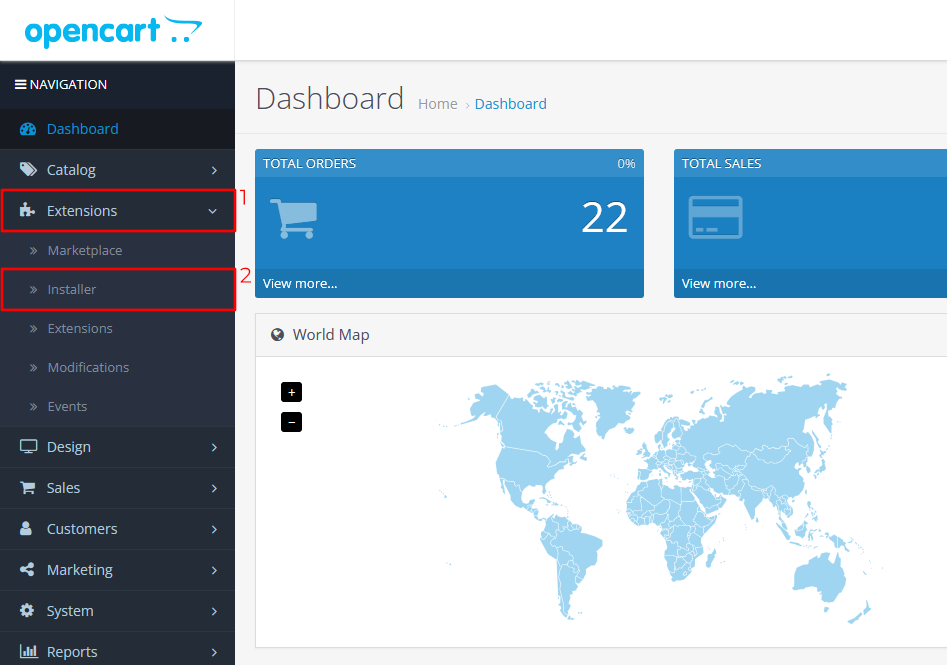
Step 1: Open the Installer
Log in to your OpenCart store's admin area and click Extensions to open a dropdown menu. Then click Installer.
Step 2: Upload the extension
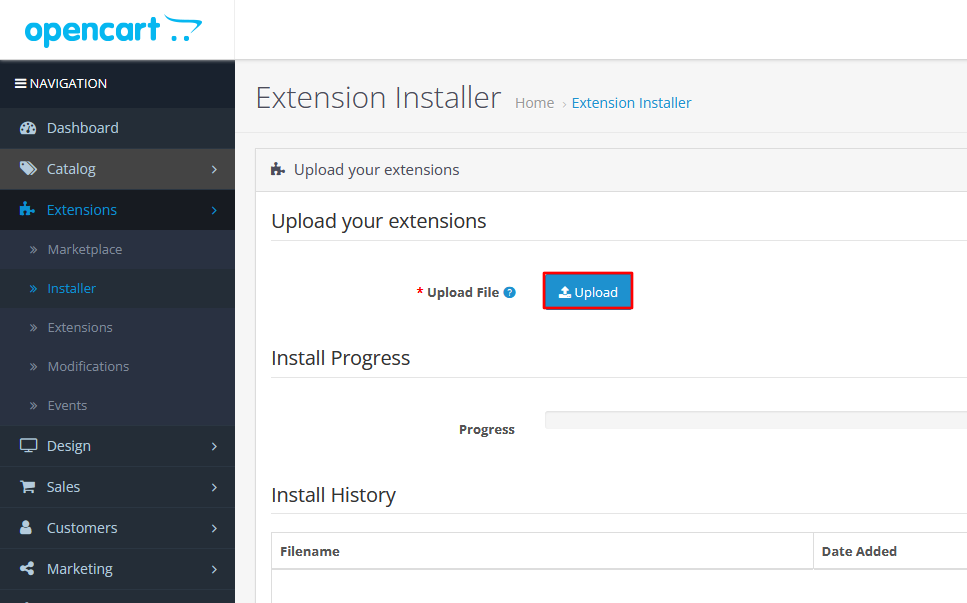
On the Installer page, click Upload and select the CryptAPI extension file.
Make sure the file name ends like this:
CryptAPIExtensionOC3.ocmod.zipYou may need to add the .ocmod part, otherwise OpenCart won't accept the file.
Step 3: Go to Extensions
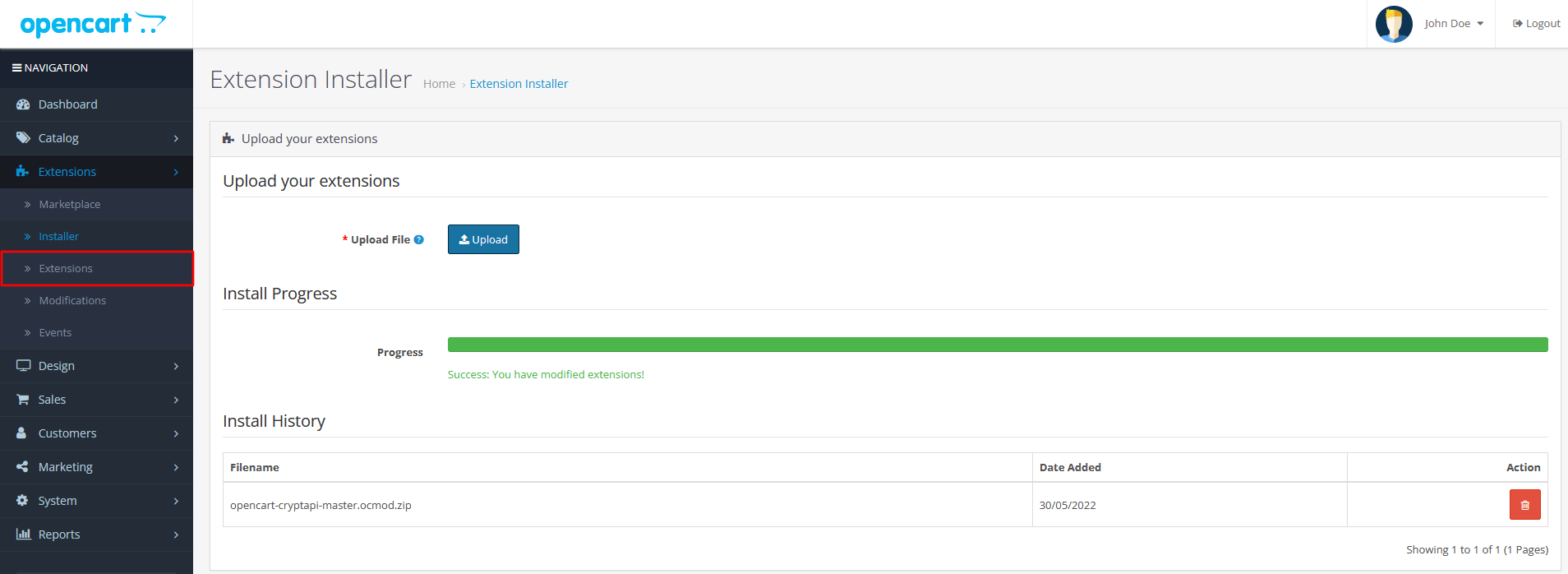
After you select the file, your store installs the CryptAPI extension. When it's done, your screen should look like this. Then click Extensions.
Configuration Steps
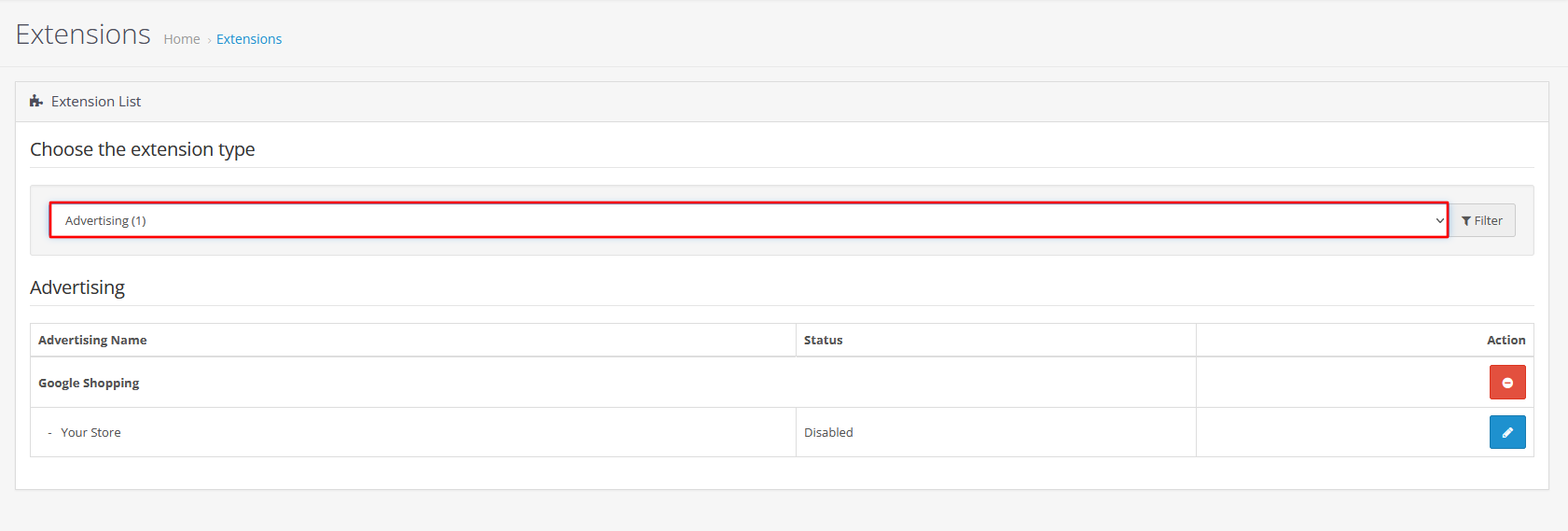
Step 4: Choose Payments
Click the select field and choose Payments from the list.
Step 5: Edit CryptAPI
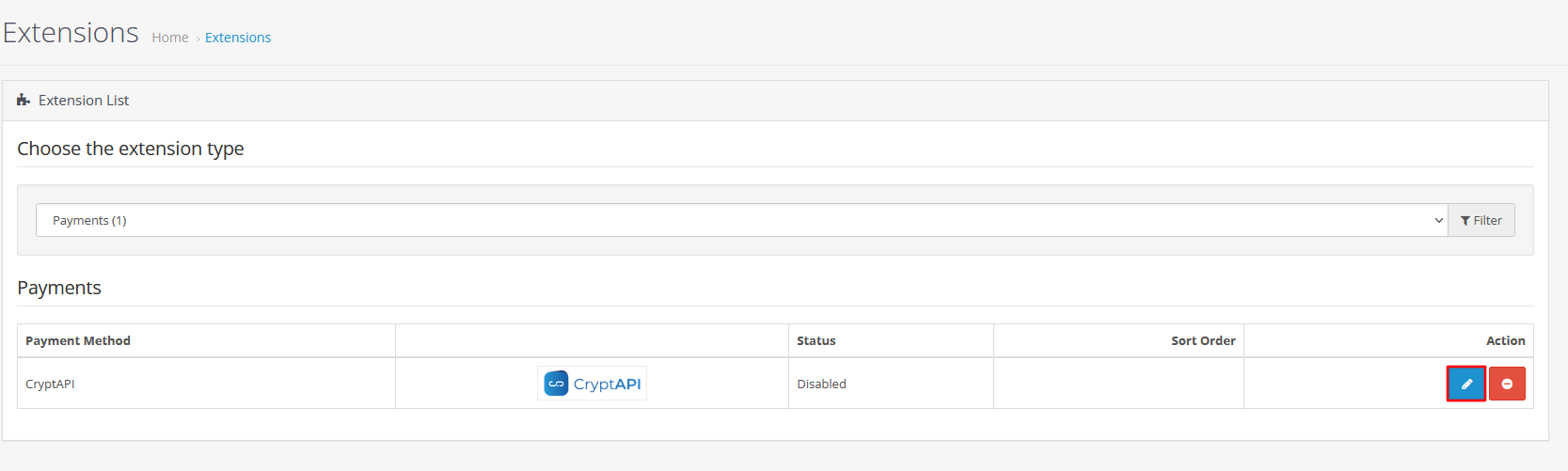
A list of payment extensions shows up. Find CryptAPI in the list and click the pencil button to start setting it up.
Step 6: Check the settings page
If everything went right, you should now see this page.

Step 7: Enable the extension
Set Status to Enabled. Otherwise the extension won't work, even if the rest is set up correctly.
Then look through the other settings and set them to suit your needs.

Step 8: Choose your cryptocurrencies
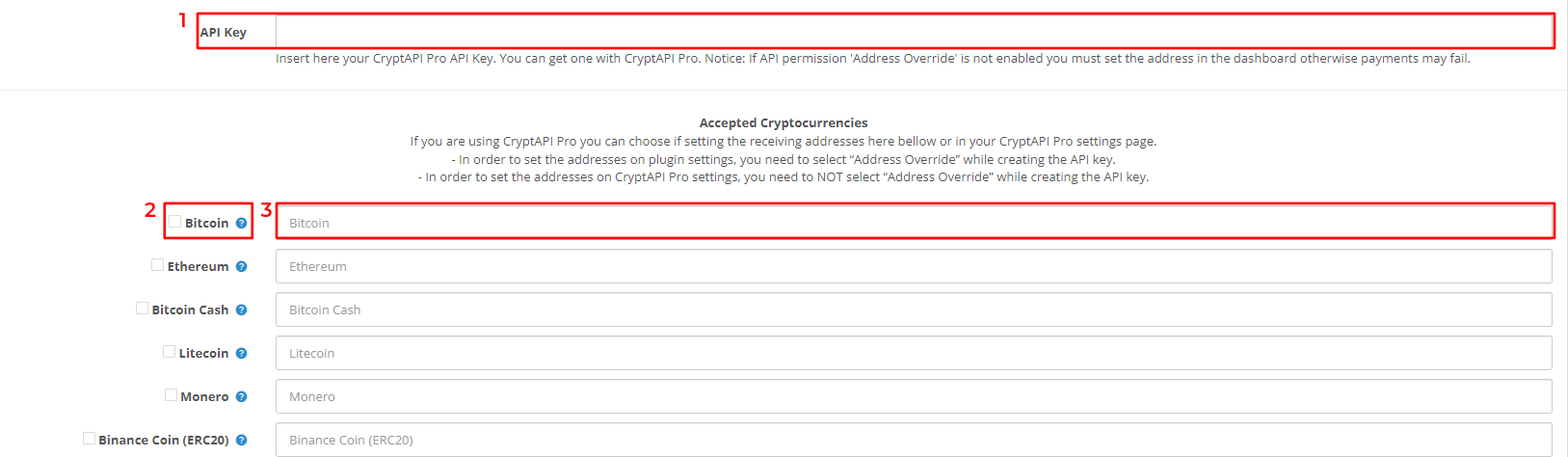
Scroll down to Accepted Cryptocurrencies:
- Cryptocurrency checkbox: select the cryptocurrencies you want to accept in your store. You can tick several boxes.
- Wallet address: in the field to the right of each checkbox, paste your wallet address for that cryptocurrency.
You don't need an API key. If your version of the extension shows an API Key field, leave it empty.
Step 9: Save
Click the save button. Your OpenCart store now accepts cryptocurrencies.
