
This page guides you through configuring our Magento extension once it's installed. You'll find the install instructions on our GitHub. For the full extension reference, see Magento.
Configuration Steps
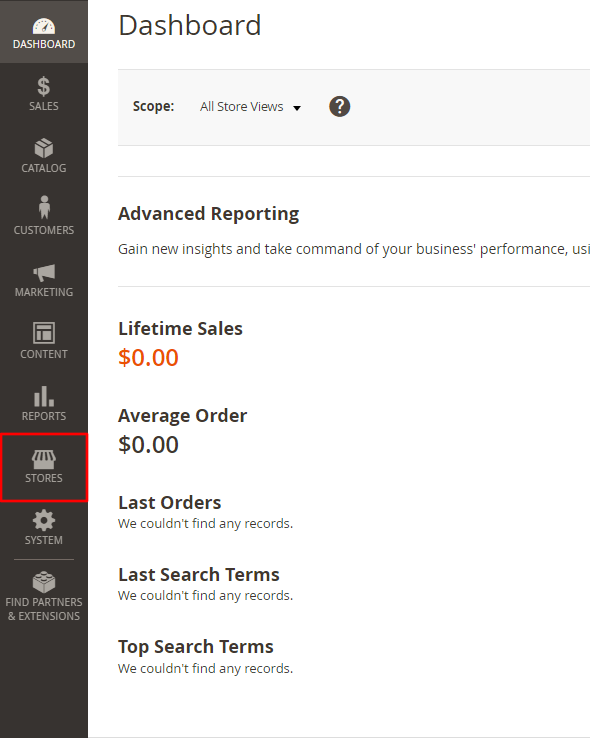
Step 1: Open Stores
Go to your Magento admin page and click Stores.
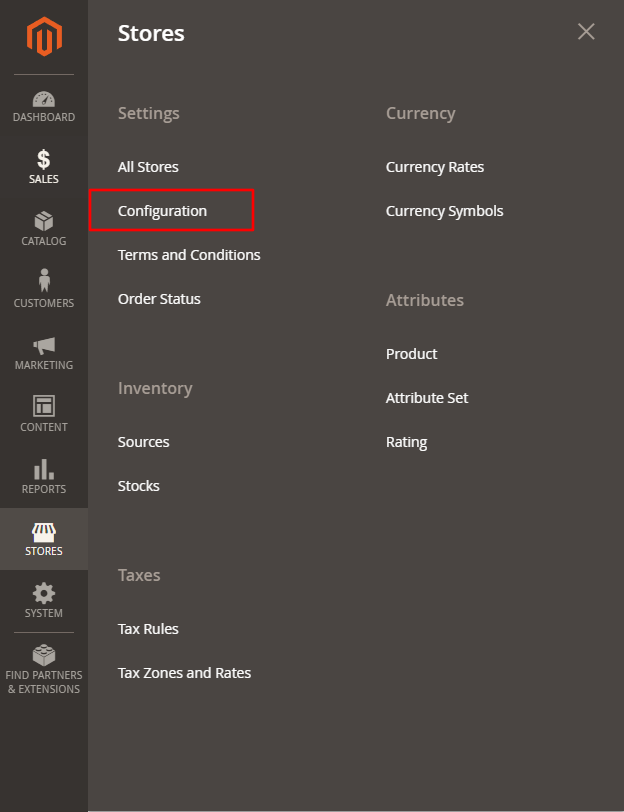
Step 2: Open Configuration
In the menu, click Configuration.
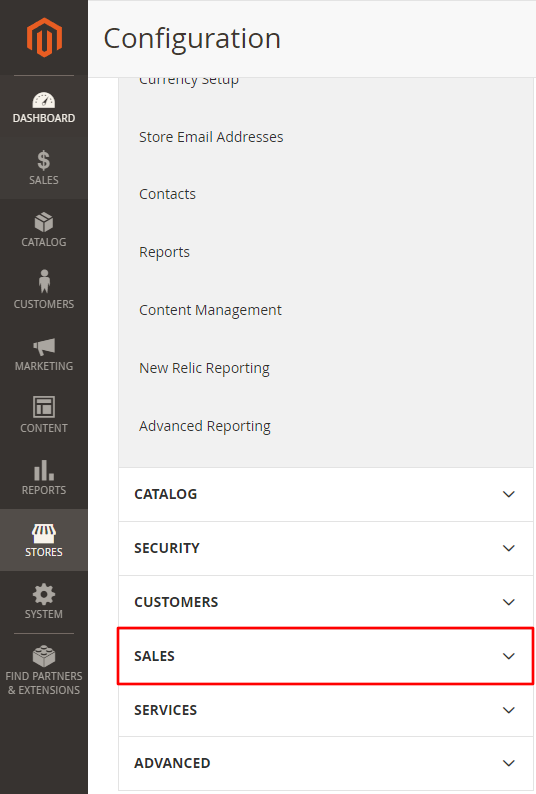
Step 3: Open Sales
When the page has loaded, click SALES to open a dropdown menu.
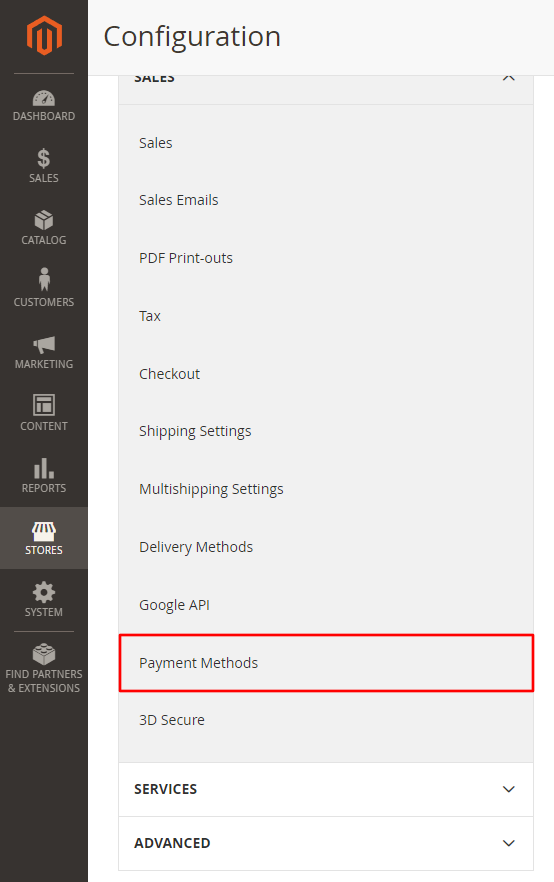
Step 4: Open Payment Methods
In the dropdown menu, click Payment Methods.
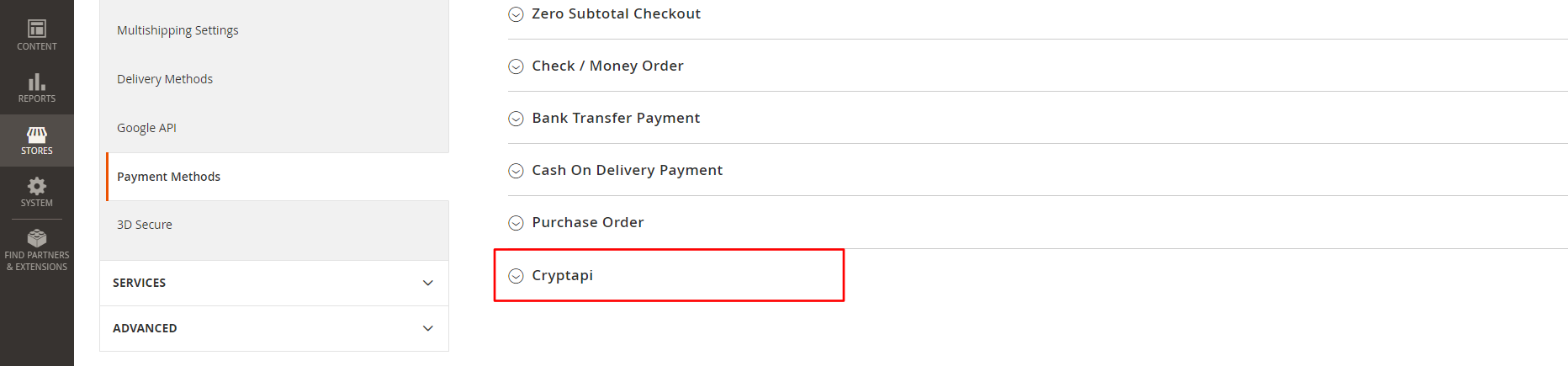
Step 5: Open the CryptAPI settings
Click Cryptapi to show our extension's settings.
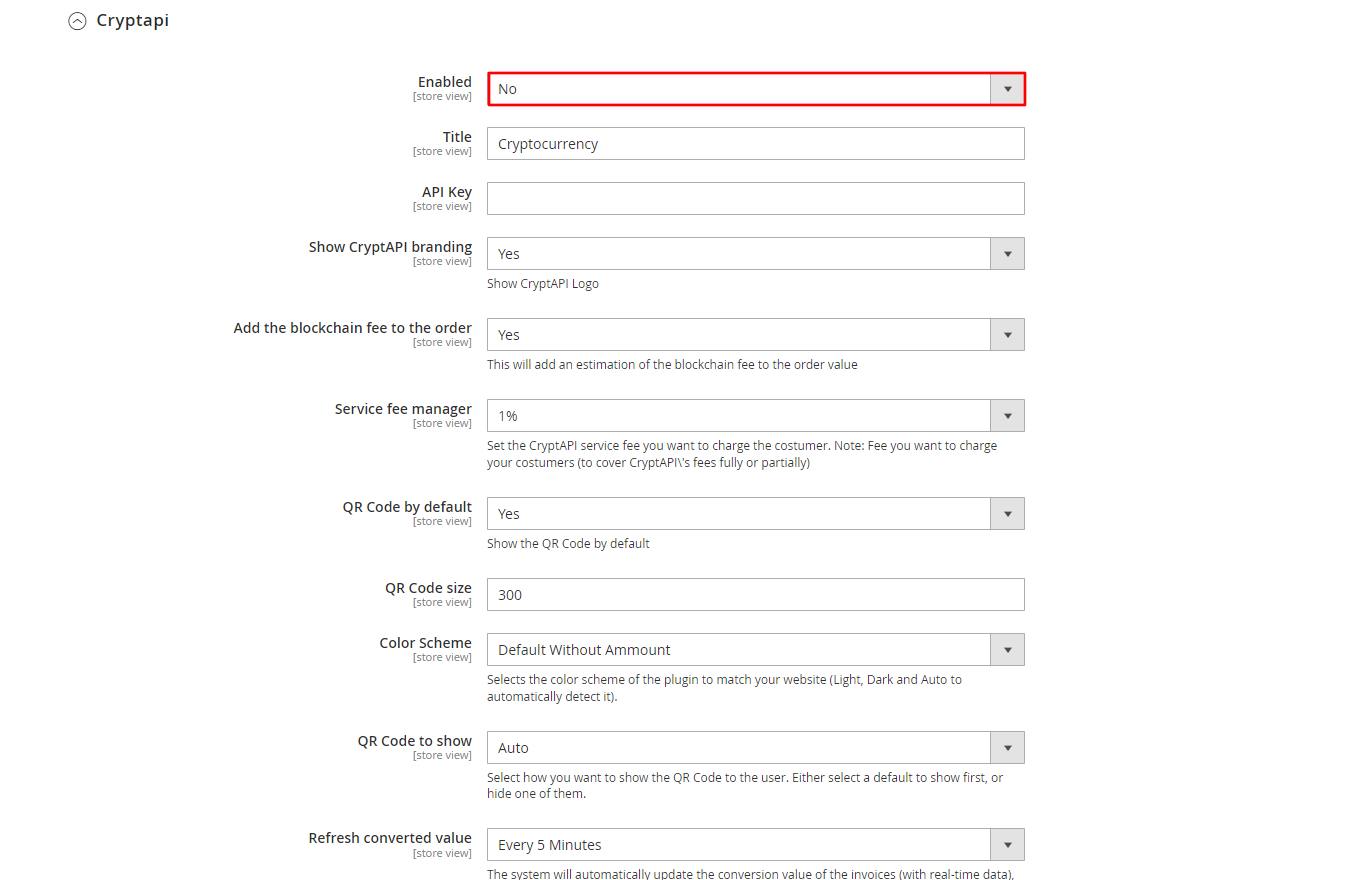
Step 6: Enable the extension
Find the Enabled option and set it to Yes.
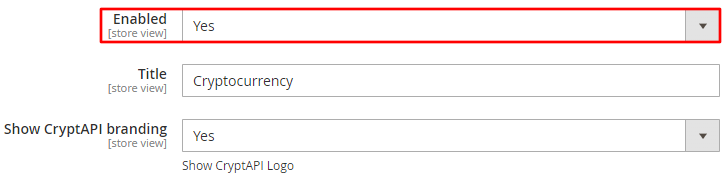
Step 7: Check the setting
Make sure the setting looks like the image below. This setting turns the extension on or off: if it's set to No, our extension won't show up at your store's checkout.
Then look through the other settings and set them to suit your needs.
Step 8: Leave the API Key empty
You don't need an API key. If your version of the extension shows an API Key field, leave it empty.

Step 9: Open Cryptocurrencies
Now set up the cryptocurrencies you want to accept. Click Cryptocurrencies to show the list.

Step 10: Add your addresses
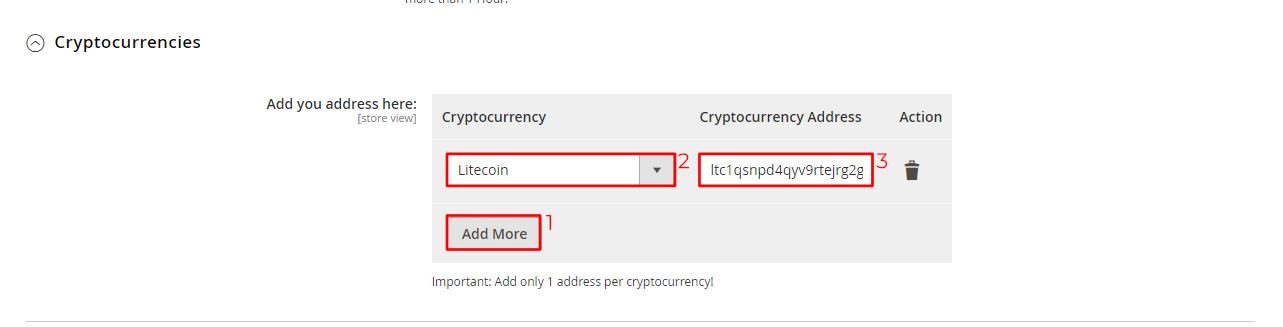
Add the addresses for the cryptocurrencies you want to accept:
- Click Add More to add a row.
- Select the cryptocurrency you want to add.
- Paste your wallet address.
You can only add one address per cryptocurrency.
Step 11: Save
Click Save Config to save the settings. Our extension is now on and ready to take orders in the cryptocurrencies you selected.
