Our PrestaShop module lets you get paid in all the cryptocurrencies we support, with a simple setup and no sign-ups required.
This page guides you through installing and configuring our official PrestaShop module. For the full module reference, see PrestaShop.
Installation Steps
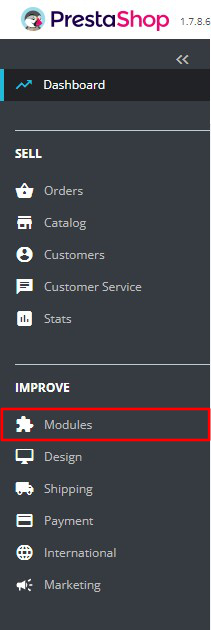
Step 1: Open Modules
Download our PrestaShop module and go to your store's admin area. Then click Modules to open a dropdown menu.
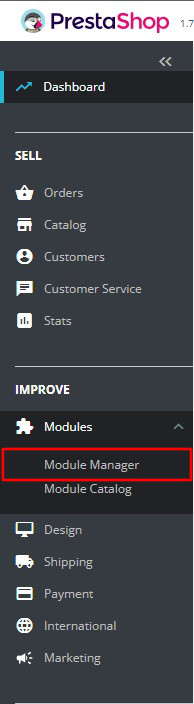
Step 2: Open the Module Manager
In the dropdown, click Module Manager.
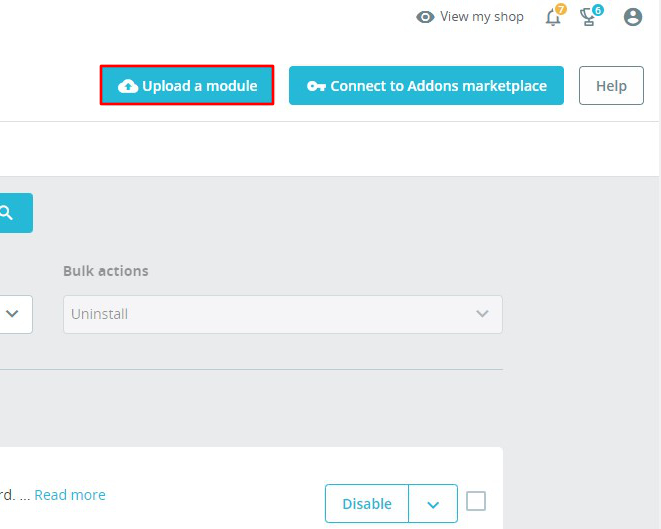
Step 3: Upload a module
On the Module Manager screen, click Upload a module.
Step 4: Select the zip file
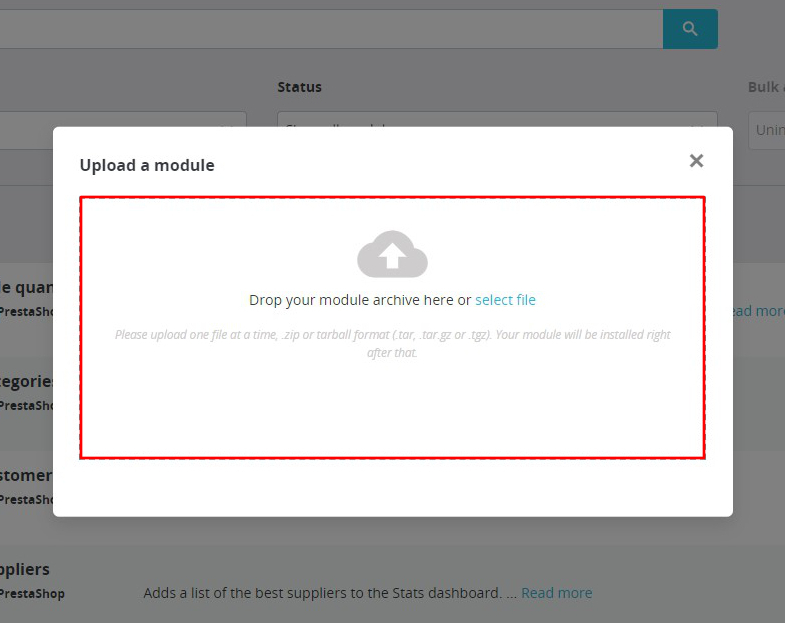
A window opens. Drop the zip file in the red area, or click select file to pick it from your computer.
Step 5: Configure
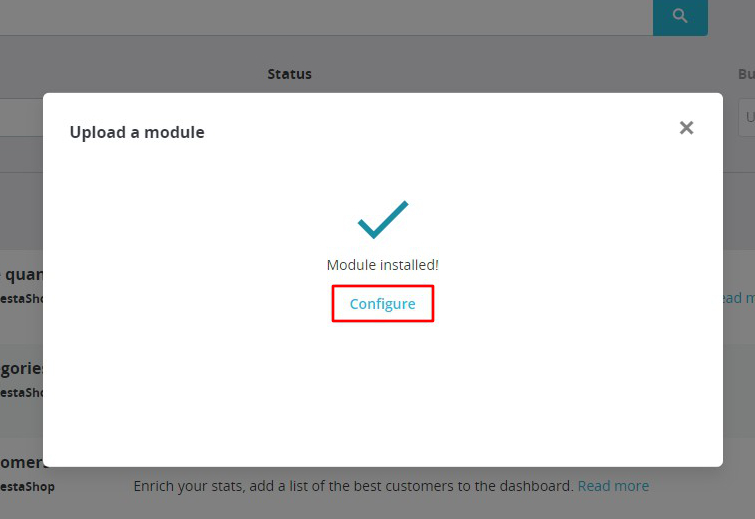
If you chose the right zip file, PrestaShop installs it. When it's done, click Configure.
Configuration Steps
Step 6: Activate the module
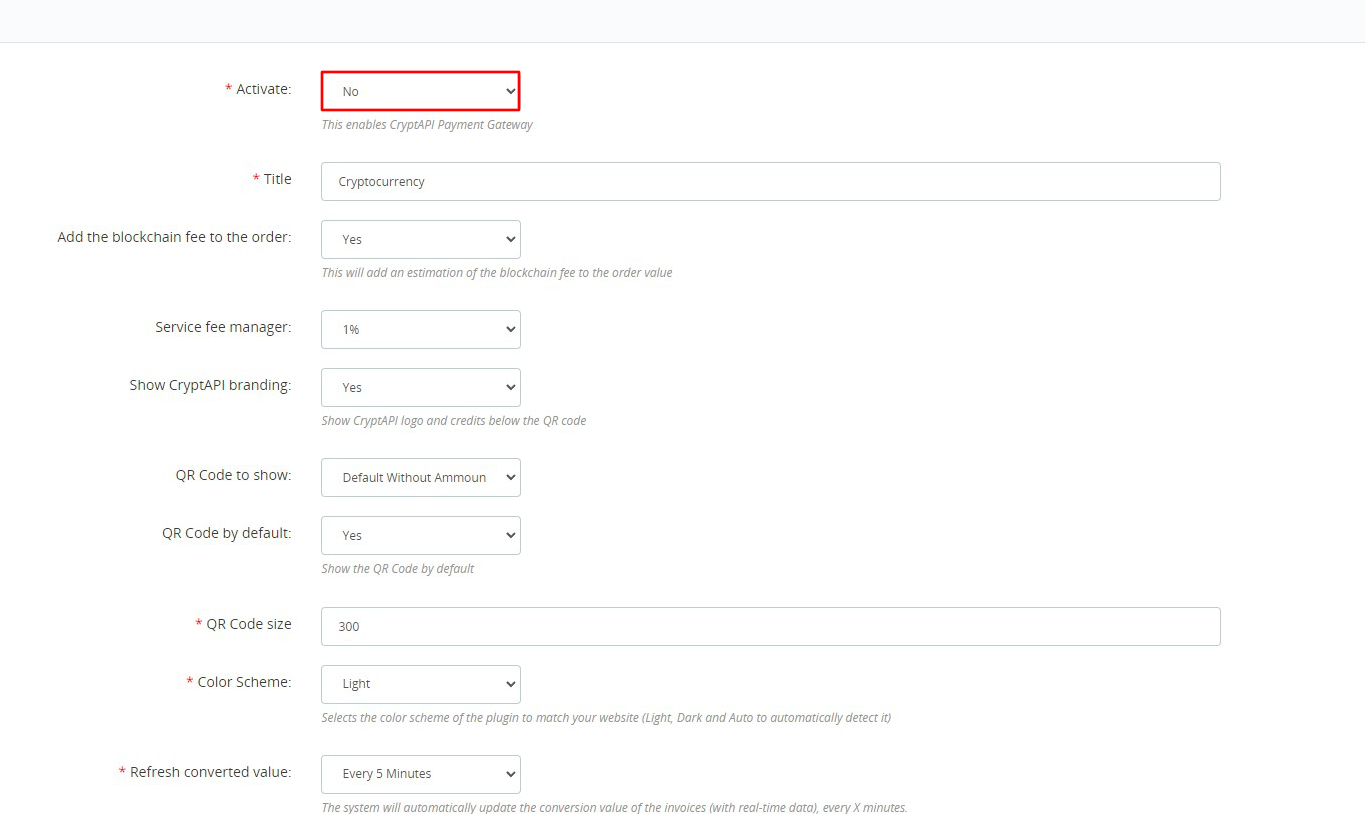
You'll see the CryptAPI module settings. First, activate the module. You can set the rest of the settings to suit your needs.
Step 7: Choose your cryptocurrencies
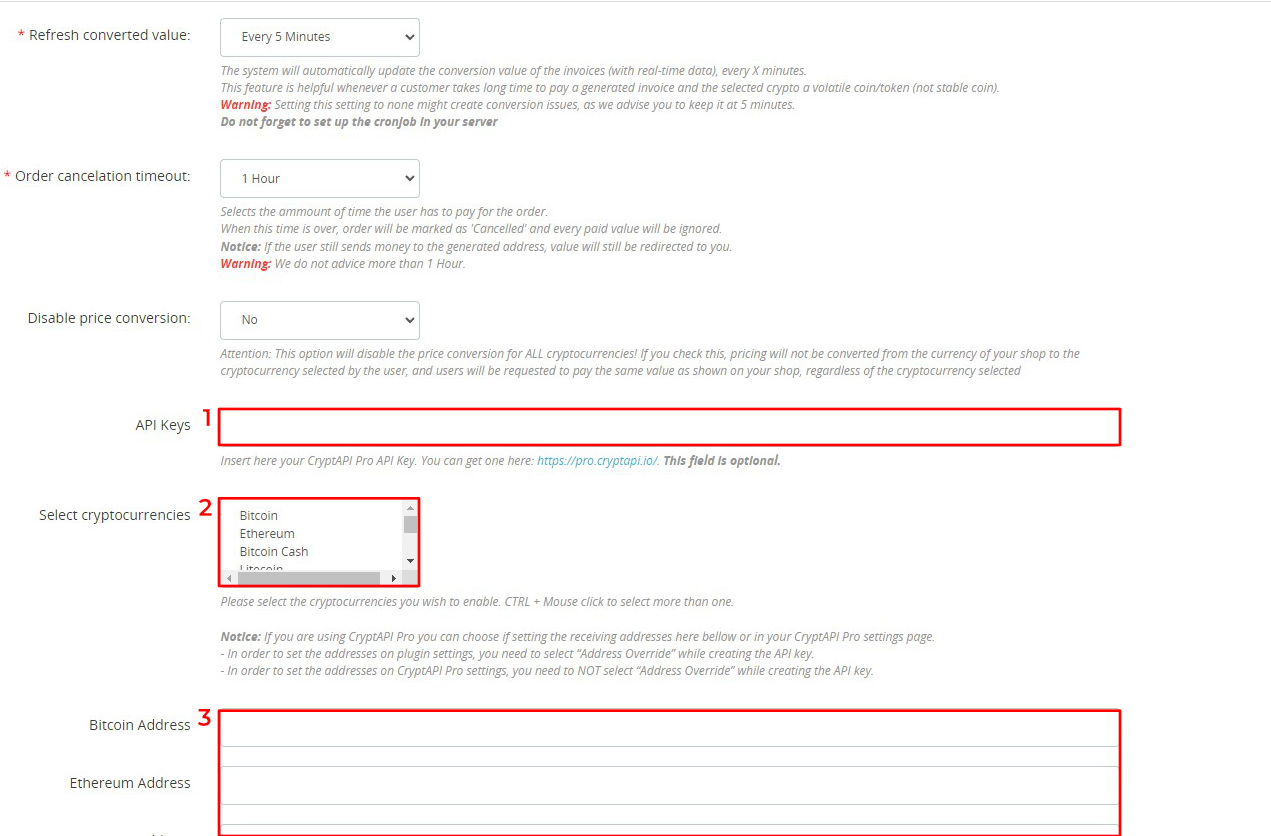
Scroll down the settings page to the fields you must fill in:
- Select cryptocurrencies: select the cryptocurrencies you want to accept in your store. Hold Ctrl (Windows) or Command (Mac) and click to select several.
- Wallet addresses: paste your wallet address for each cryptocurrency you want to accept.
You don't need an API key. If your version of the module shows an API Key field, leave it empty.
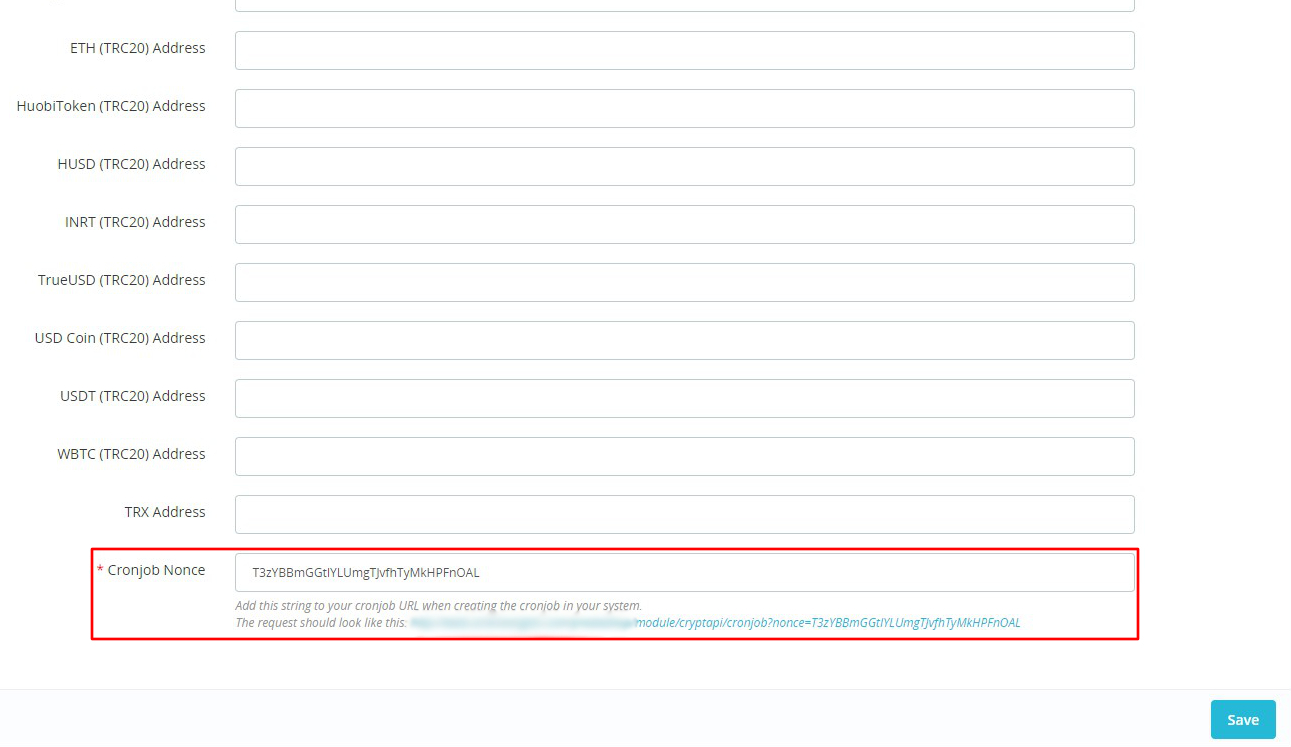
Step 8: Set up the cron job
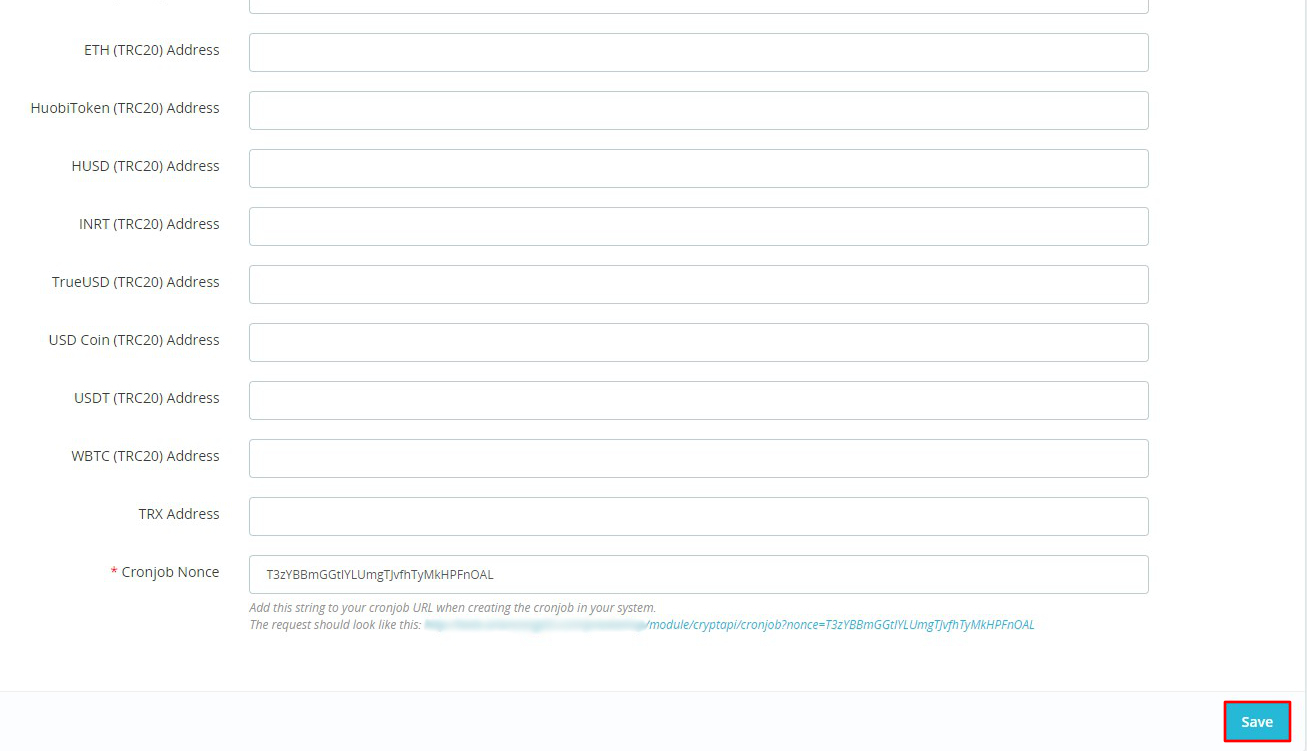
Here you can set your Cronjob Nonce, though a default one is already set for you. Some of the module's features need a working cron job: set one up that calls the given link every 5 minutes. If you aren't sure how to do this, ask your hosting provider.
Step 9: Save
When everything is set, click Save. Your PrestaShop store is now ready to accept cryptocurrencies.