The CryptAPI plugin extends WooCommerce, letting you get paid in crypto directly on your store, with a simple setup and no sign-ups required.
This page guides you through installing and configuring our official WooCommerce plugin. For the full plugin reference, see WooCommerce.
Installation Steps
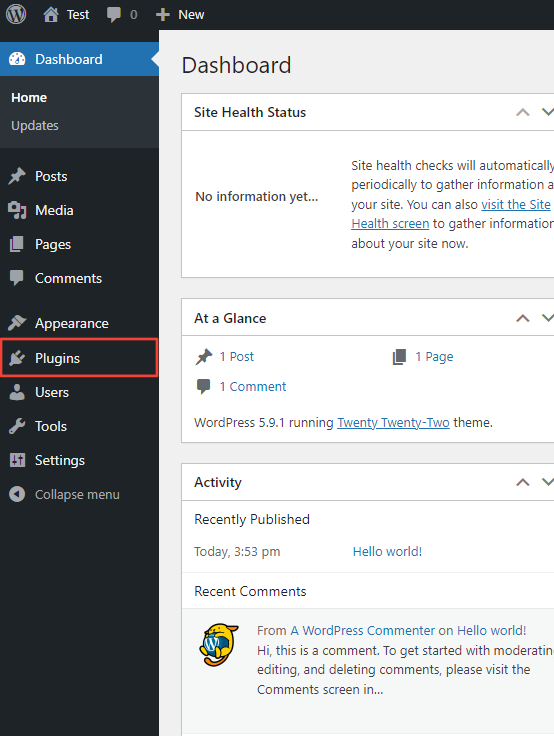
Step 1: Go to Plugins
You need WooCommerce installed first. Then go to Plugins.
Step 2: Add a new plugin
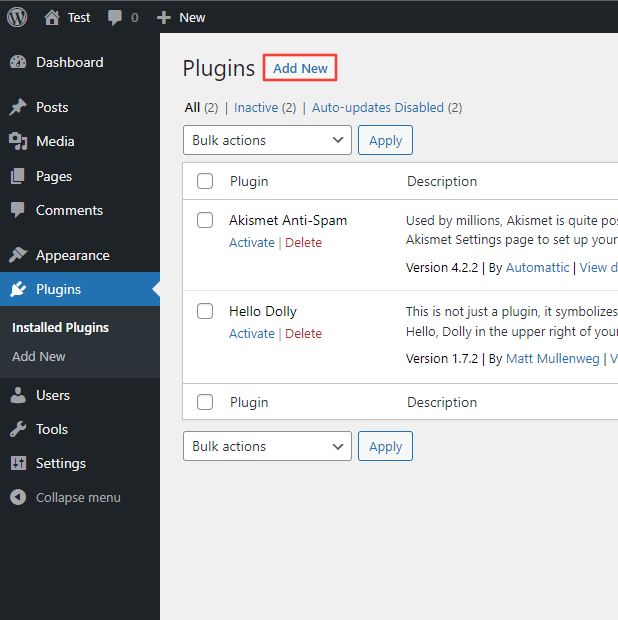
On the Plugins page, click Add New.
Step 3: Search and install
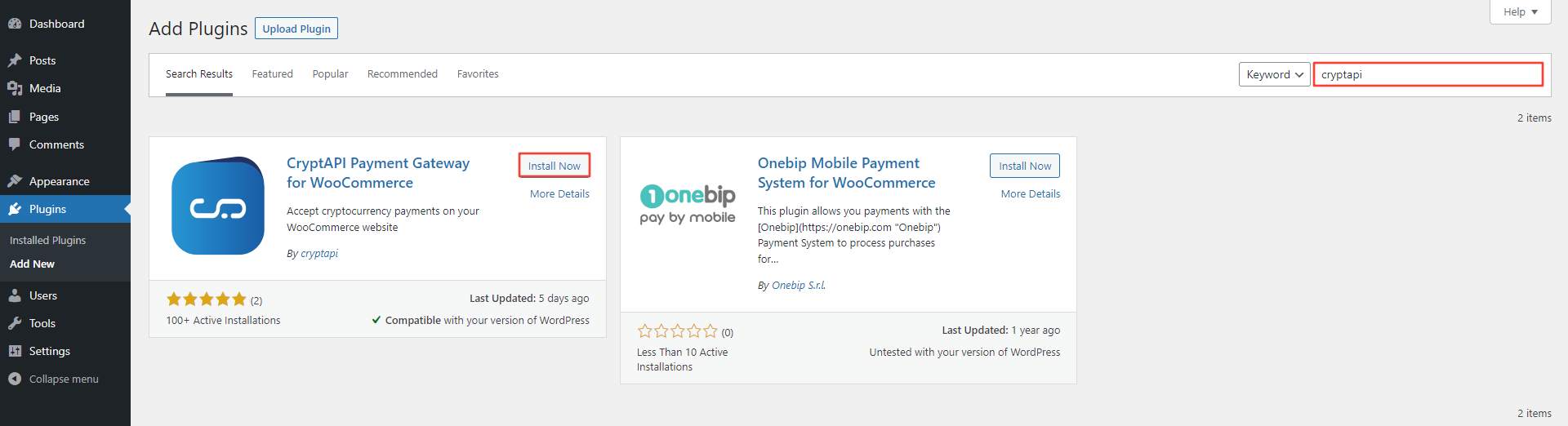
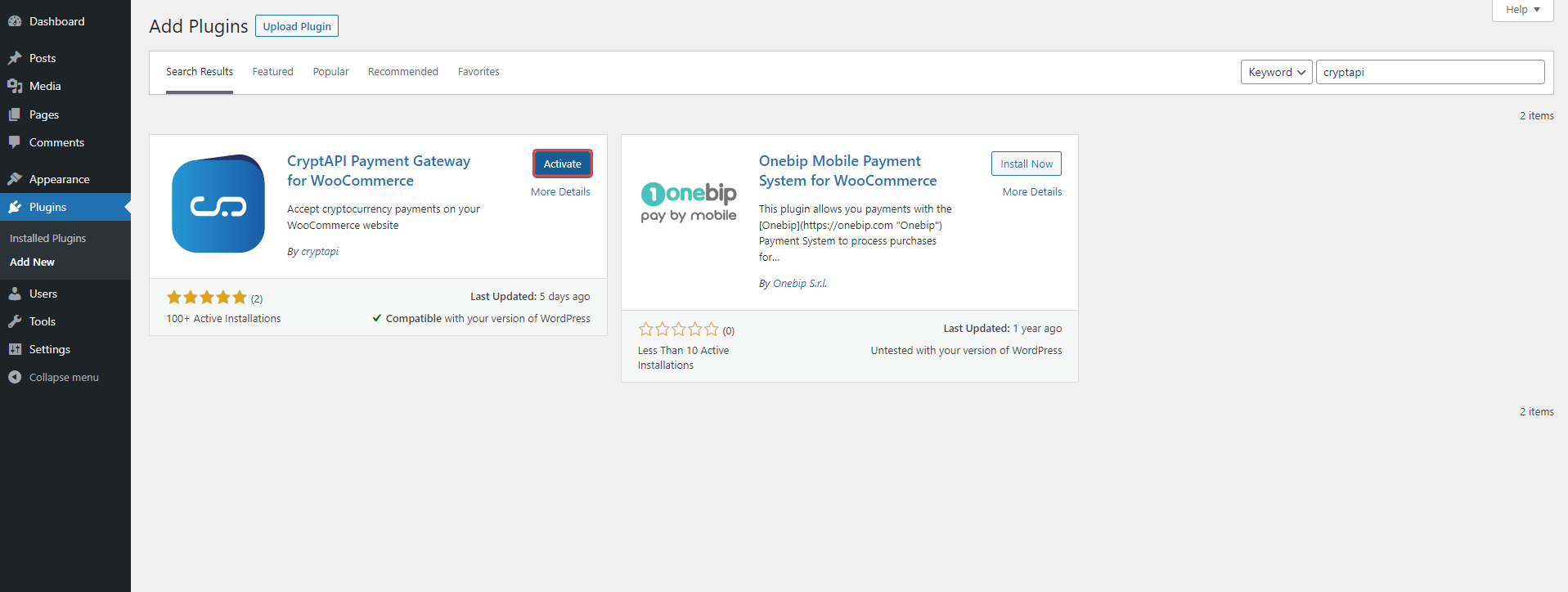
Type "CryptAPI" in the search box. When our plugin shows up in the results, click Install Now and wait for WordPress to finish installing it.
Step 4: Activate the plugin
When WordPress has installed our plugin, click Activate.
Configuration Steps
Step 5: Open the WooCommerce settings
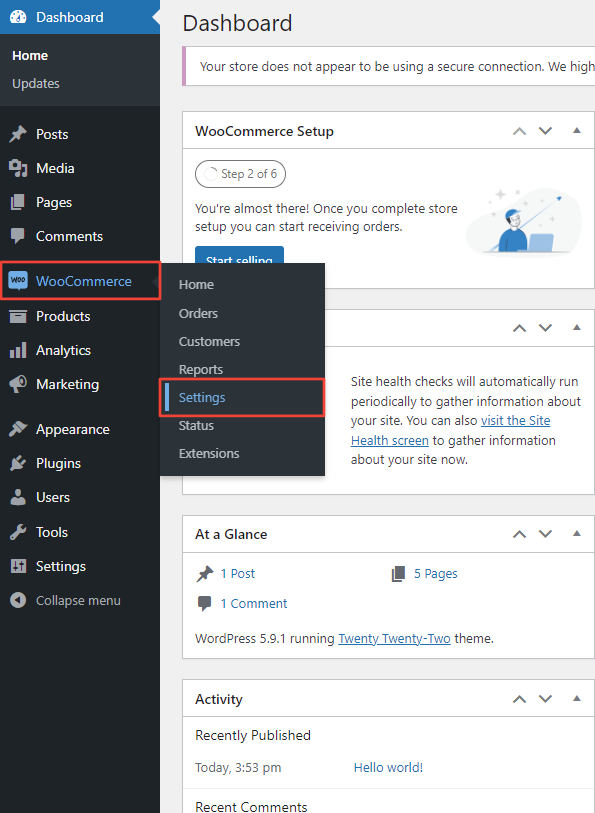
Go to WooCommerce and click Settings.
Step 6: Go to Payments
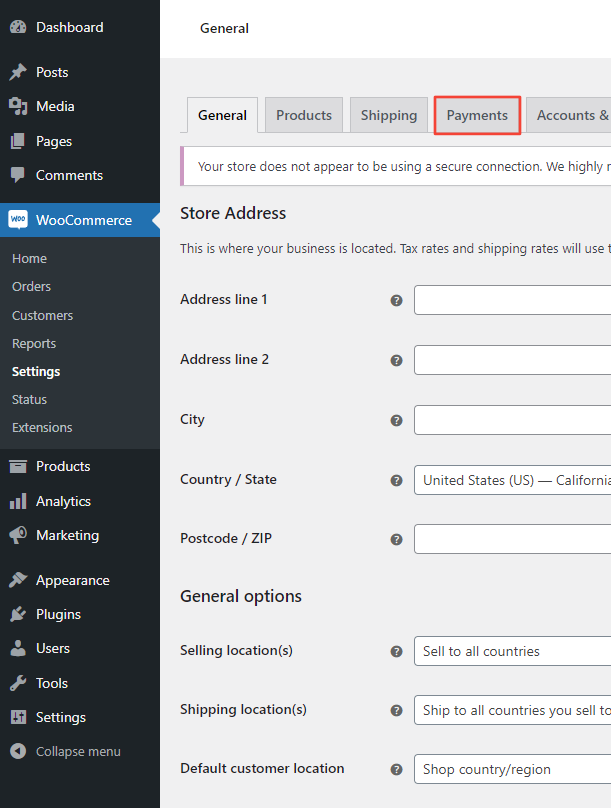
On the WooCommerce Settings page, click Payments.
Step 7: Manage CryptAPI
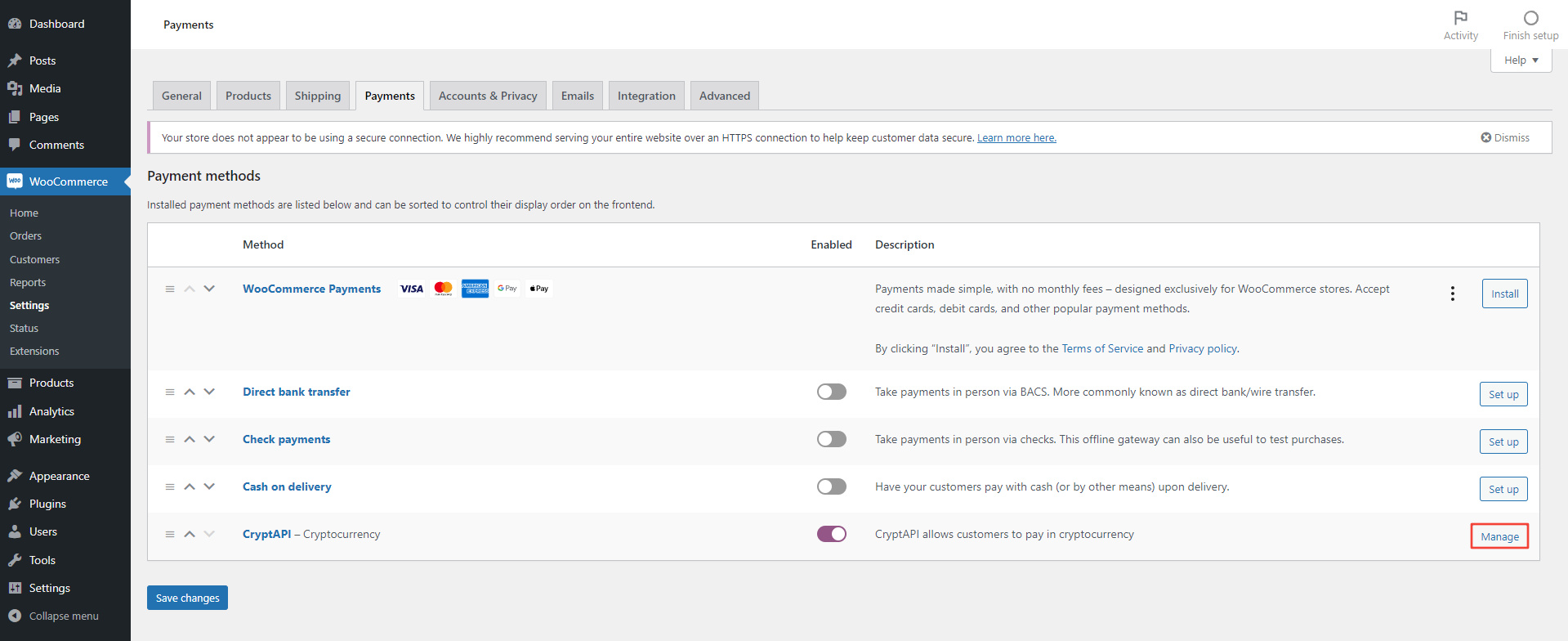
You may have other payment methods here. Make sure our plugin is Enabled, then click Manage to add your wallet addresses and choose the cryptocurrencies you want to accept.
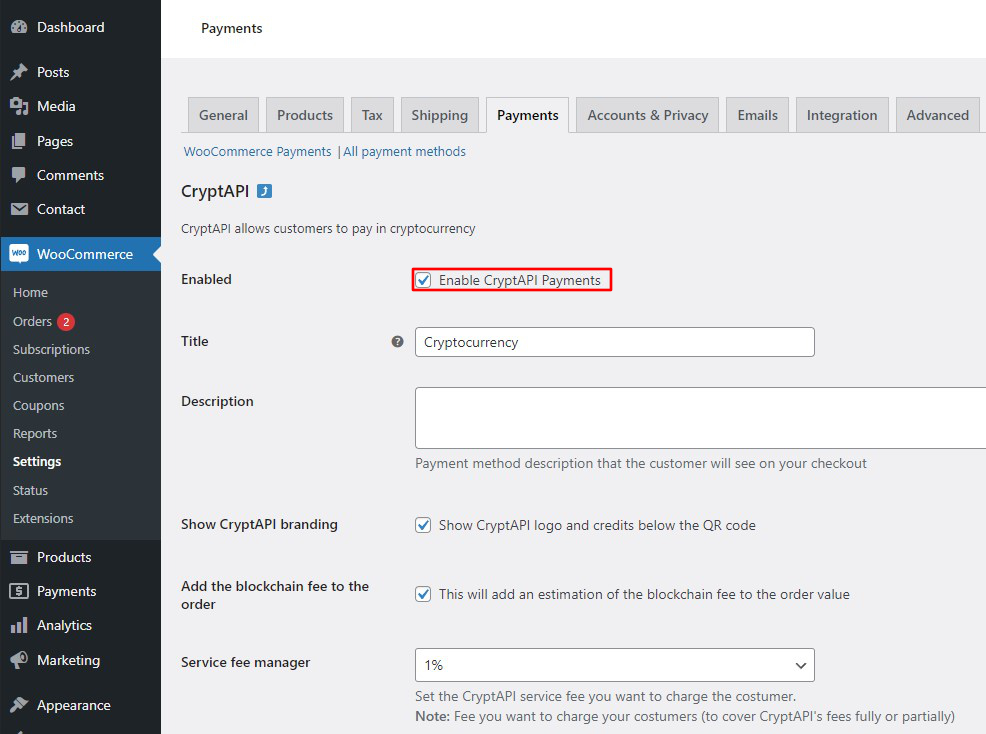
Step 8: Enable the plugin
Make sure the checkbox is ticked. You can also adjust the other settings to suit your store.
Step 9: Choose your cryptocurrencies
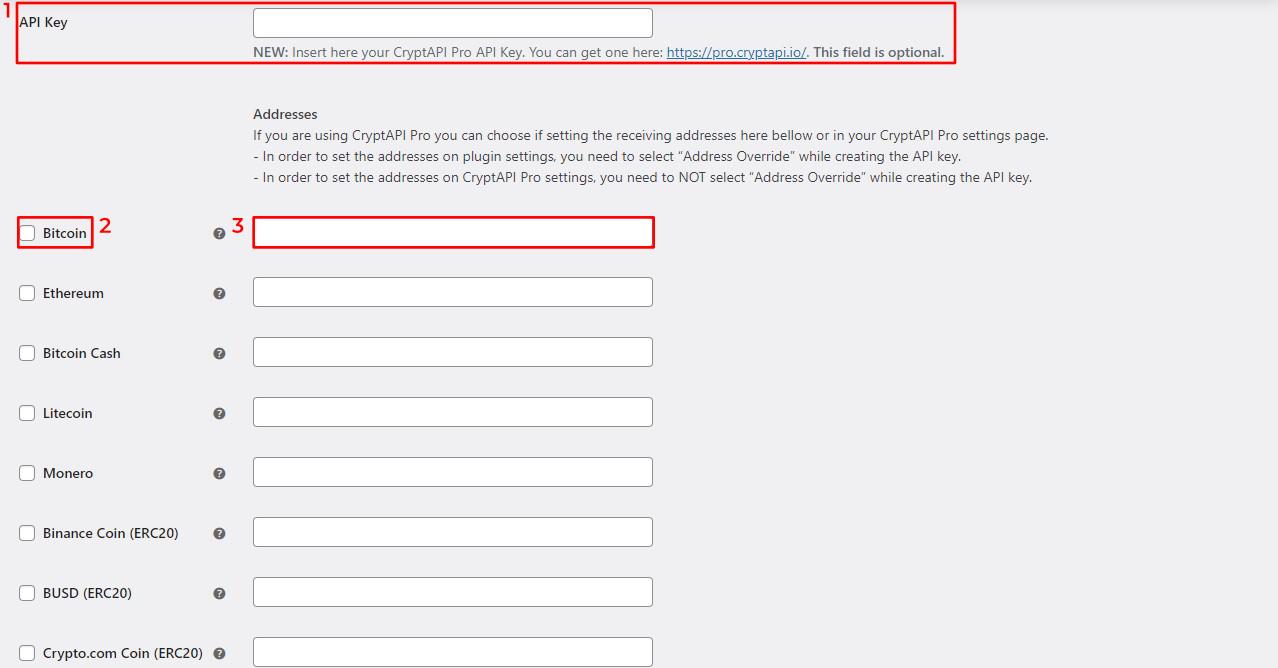
Scroll down until you find the cryptocurrencies:
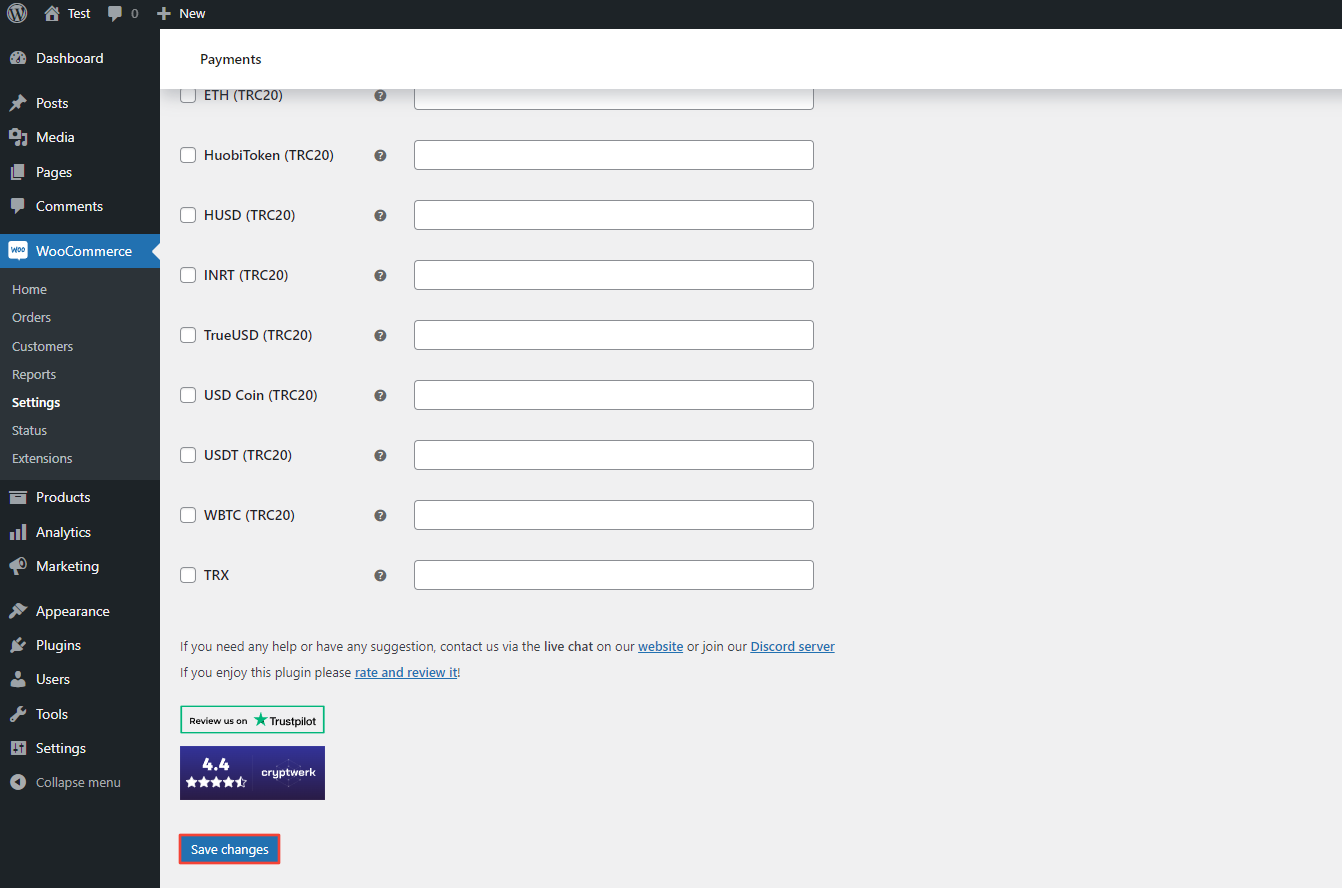
- Cryptocurrency checkbox: select the cryptocurrencies you want to accept in your store. You can tick several boxes.
- Wallet address: in the field to the right of each checkbox, paste your wallet address for that cryptocurrency.
You don't need an API key. If your version of the plugin shows an API Key field, leave it empty.
Step 10: Save
Scroll to the bottom of the page and click Save Changes to finish setting up our plugin.